 Shotmori
Name it for the task.
New screenshots arrive in the active shelf of the main panel. Switch shelves when you switch tasks.
Capture with your Mac shortcuts. Collect in shelves. Make a quick edit, then drag the whole context into your next app.
Your Mac saves the screenshots. Your active shelf collects them.
Interactive illustrationA bug report. A design decision. A better question for AI. Small screenshots, a much clearer picture.
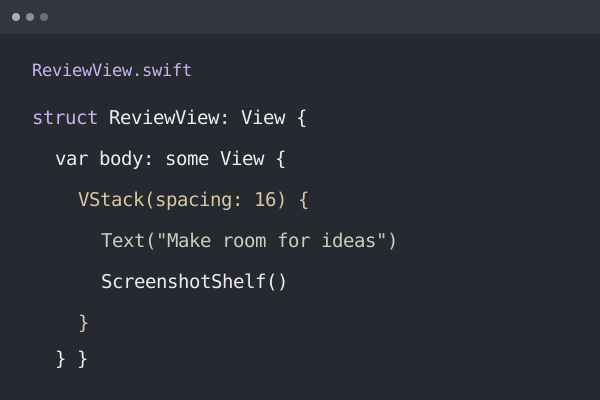
The expected view and the broken state, in the same draft.
File handoff to your AI chat. Shotmori does not run AI analysis.
Keep a design review apart from a bug report. Name your shelves, move screenshots between them, and open a shelf in its own window when you need it.
New screenshots arrive in the active shelf of the main panel. Switch shelves when you switch tasks.
Drag an image onto another shelf’s tab. The original file stays where it is.
Open a shelf in its own window. Put it back in the main panel when you’re done.
Crop, cover sensitive details with solid redaction, and share a fresh copy. Your original stays just as it was.
Explore the preparation toolsSlide to compare. All example content is synthetic.
Upload to your Google Drive or S3-compatible storage. Uploading and sharing only happen when you start them. Automatic backup is a separate option and is off by default.
Explore the cloud previewhttps://files.example.com/review.pngExample link · no upload takes place
Keep using your familiar macOS shortcut. Shotmori collects the saved screenshots on your shelf.
The shelf references the originals. Edits create new copies. Removing an item from a shelf does not delete the file.
No. Local shelves, editing, and OCR work without cloud storage. Cloud features are in Preview and require your setup and opt-in.
The public release is in preparation. Current download and version information is on the release status page.
Find download availability, release details, and license information for Shotmori for Mac.